Cash Flow
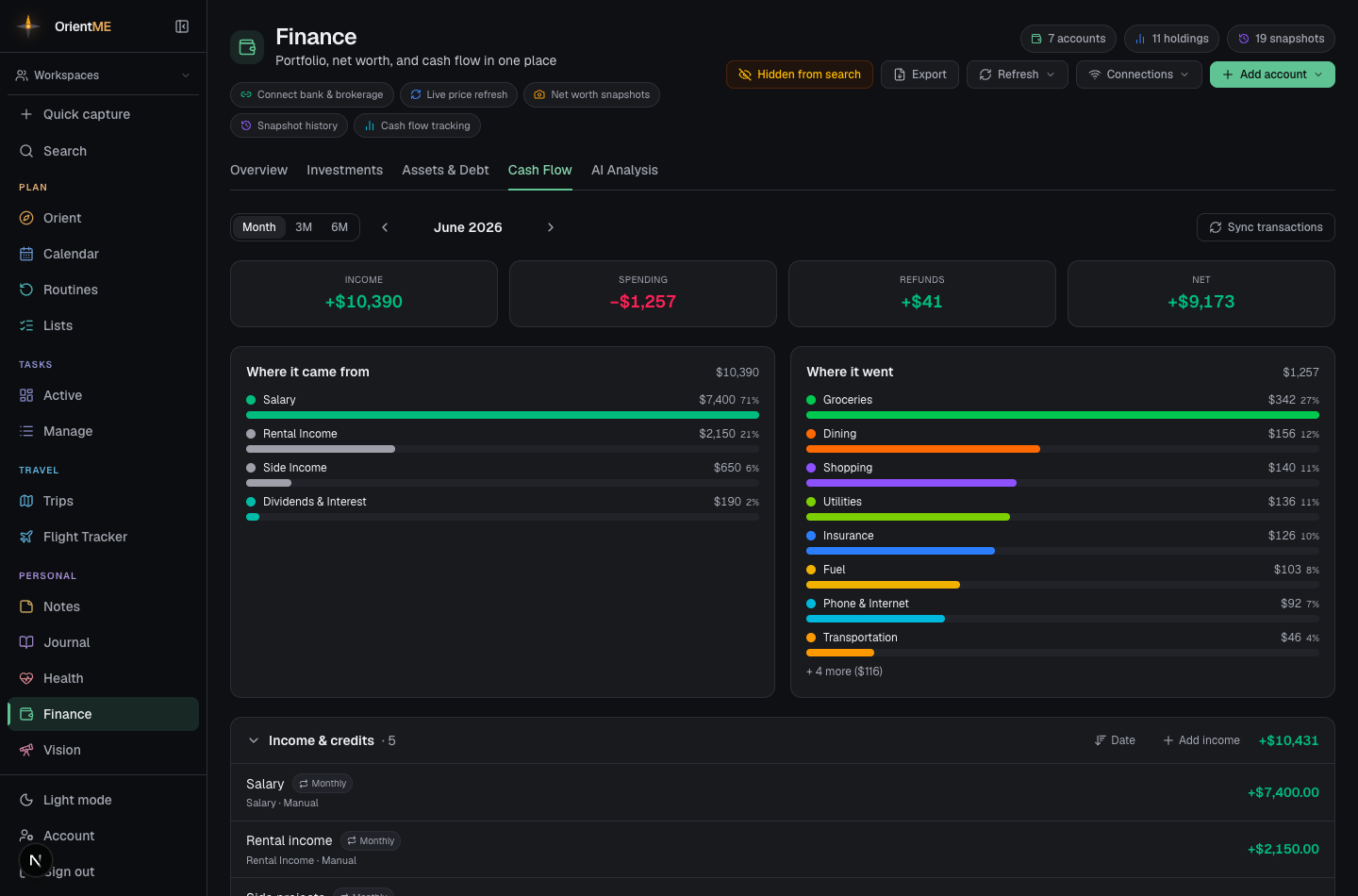
The Cash Flow tab is a month-by-month tracker of income minus expenses. Add entries by hand or let it build itself from your bank activity — and once a bank is connected, your transactions also power Trip spending on your trips.
Income and expenses
Add entries with a name, amount, and category, and choose how often they repeat: monthly, one-time, or — for income — every 2 weeks or weekly. Insights highlight your largest recurring income and expense, and how this month compares to last.
Cash flow can also build itself from your bank activity. If you haven't linked a bank yet, the tab offers Connect a bank; once one is connected, Sync transactions pulls your recent income and spending in, categorized automatically. (Linking a bank is covered in Accounts & connections.)
The mobile Cash Flow tab has two views. Transactions is your real bank activity — the same classified income, spending, and excluded card-payments/transfers you see on the web, with category breakdown bars and a month / 3M / 6M window. Tap any transaction to re-categorize it (with an "Apply to all" option for that merchant), and tap a category bar in the breakdowns to filter the lists — exactly like the web. Budget lines is the hand-entered income and expenses covered above, with side-by-side Add expense and Add income buttons. Pull fresh bank activity anytime with Refresh ▸ Refresh transactions in the header — no trip to the web needed.
At-a-glance insights
Under the Income / Spending / Net cards, a slim insight strip reads out the month in one line (on both web and mobile):
- Savings rate — the share of your income you kept this period.
- Spending vs last month — how this month's spending compares to the previous one, as a dollar amount and percent (single-month view only).
- Runway — how many months your cash and savings would cover at this period's average monthly spend.
Narrow it to one account
Next to the period controls sits an account filter — on the web a dropdown that starts on All accounts; on mobile a row of chips you can swipe through. Pick one and the whole tab narrows to it: the Income / Spending / Net cards, the breakdown bars, the trend, and every list below. It's the fastest way to answer "what did I put on this card last month?" Choose All accounts (or tap clear) to go back.
You'll also land here with an account already picked when you use See all in Cash Flow from an account's recent-activity drawer (see Accounts & connections).
While you're filtered to a single account, a few figures step aside because they'd be misleading: hand-entered income sources don't belong to any one account, so they're hidden along with the Add income button, and the Runway insight disappears — your cash reserve measured against one card's spending isn't a runway. Switch back to All accounts and they return.
Find a transaction
A search box sits above the transaction lists — type a merchant, description, category, or account name (say, "Costco") and every section filters to the matches, opening automatically so nothing hides in a collapsed list. Searching covers the period you're viewing; switch to 3M or 6M to search further back. Tap the ✕ to clear.
Income that isn't monthly
Paid every two weeks or weekly? Pick that cadence and enter the amount per paycheck, then set your most recent payday. OrientME counts the actual paydays that land in each month — so the two months a year with a third biweekly paycheck show up correctly instead of being averaged away. A small "≈ $/mo" estimate shows alongside for budgeting.
A "twice a month" schedule (like the 1st and 15th) is exactly two paychecks every month, so just keep it as monthly and enter your monthly total.
When income stops
When a job or gig ends, edit the income and set an end date rather than deleting it. The income stops counting after that date, but every earlier month stays exactly as it was. Deleting a source is for entries added by mistake — it removes them from every month, including past ones.
See what you spent on a trip
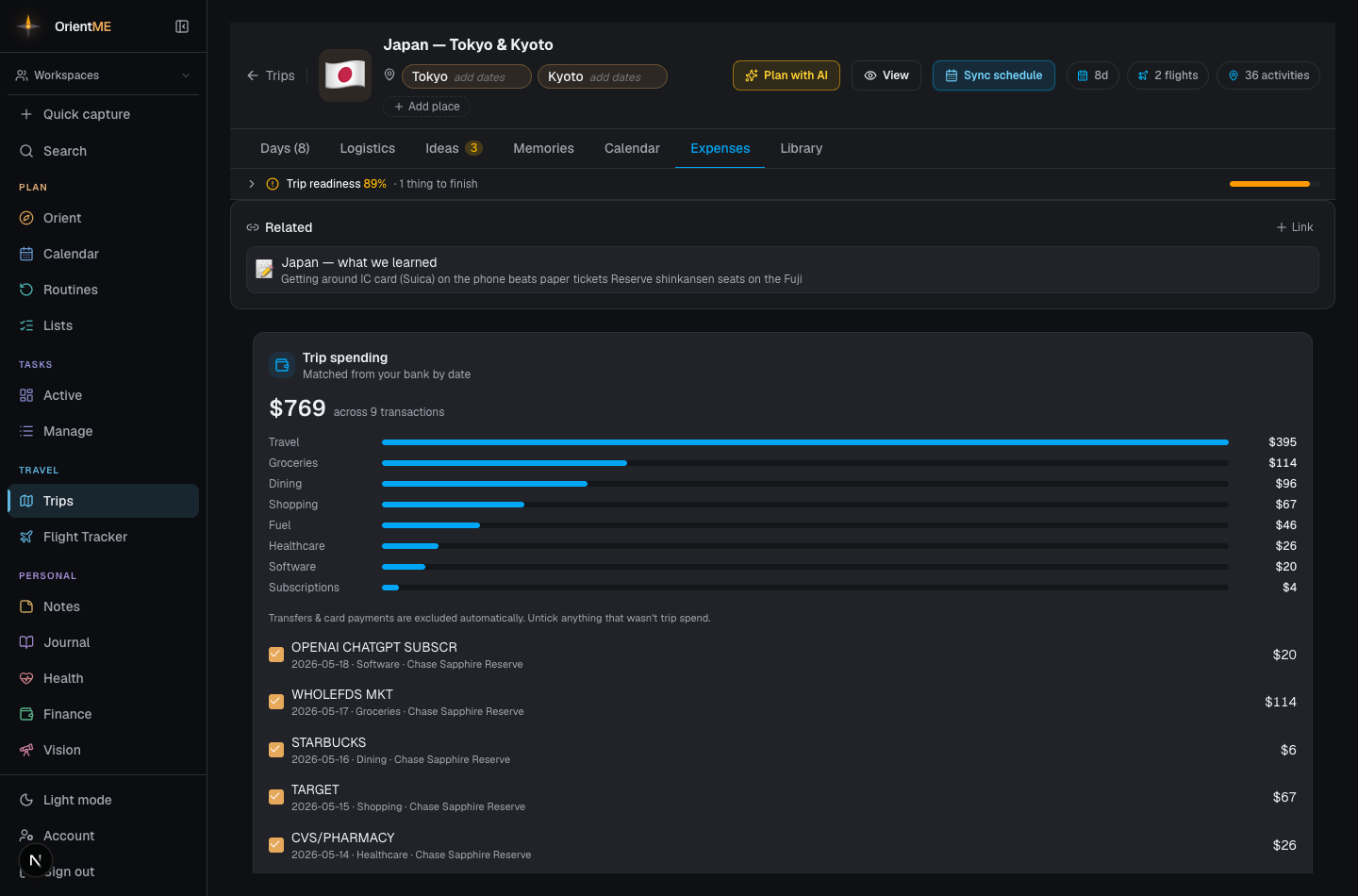
Once you've connected a bank, your transactions also power Trip spending on your trips. Open any trip with start and end dates and OrientME automatically matches every bank transaction that happened during those dates — totalled, broken down by category, and listed so you can review them. Transfers and card payments are left out automatically, and you can untick anything that wasn't really trip spend to keep the total honest. Nothing to set up: connect a bank in Finance, give the trip dates, and the spending appears. See Trips for the full walkthrough.