Training
The Training tab is your workout logger, exercise library, personal records, and progress charts — everything for planning, running, and looking back on a session.
Log a session with Log workout: add exercises, then sets with reps and weight — or, for cardio, a bout with distance, time and pace (see Cardio). OrientME automatically spots personal records — your best estimated one-rep max and top set. The Exercises library comes pre-filled and is filterable by muscle group — Chest, Back, Shoulders, Biceps, Triceps, Legs, Core and Full body — and you can add your own. When you finish a session you get one short summary — duration, total volume, how it compares with your last similar session, and any new records you just set — with a small new-records count right in the summary's title when the session earned one. The first time you log an exercise there's nothing to beat yet, so the summary lists it under Baselines recorded instead of calling it a record — your next improvement on it is the real thing. Sessions that set a record also wear a small trophy chip in your recent-workouts and history lists, so you can spot your best days at a glance.
History & records. The History & records button on the Training tab (on mobile, the History button on the Training screen) opens a full page for everything you've done. At the top, your current best for every exercise, each stamped with the date you set it: the estimated one-rep max — tagged tested when it came from an actual single you lifted, or est. when it's calculated from your best set — and your top set (your heaviest set of 2+ reps; a one-rep max attempt counts toward your 1RM, not your top set). Records aren't just for the barbell: bodyweight movements like pull-ups and push-ups record your most reps in a set, and cardio records your longest distance and best pace. A Milestones card marks landmark days — the first time two plates went on the bar, your 100th workout, and how an exercise's strength compares with a year ago. If a record's exercise has an active strength goal, the target and your progress show right on its row. A record timeline shows the days records fell and by how much, with first-time baselines kept quieter. Charts track your estimated 1RM over time — pick any exercise from the dropdown and switch between 3M, 1Y, and All — alongside weekly training volume and a 30-day muscle-balance view. Balance counts biceps and triceps separately — they're trained on different days and rarely in the same exercise, so one combined "arms" bar would make a perfectly balanced week look arm-heavy. Each set counts toward the one muscle group the exercise is built around, so a bench press is chest volume and a pull-up is back volume; the triceps and biceps they also work don't inflate those bars. (Filtering the Exercises library is different — tick Triceps there and you'll still see the presses that involve them.) The Legs bar expands into a smaller quads, hamstrings, glutes, and calves breakdown underneath it — since a squat or deadlift genuinely works more than one of those at once, this breakdown counts a set toward every muscle it trains rather than picking just one, so it won't add up to the Legs bar above it — it's showing you which leg muscles got worked, not re-splitting the same total. And the workout history list re-opens the summary of any past session, exactly as you saw it the day you trained, so a dismissed summary is never gone. The session summary itself links there too — tap History & records at its bottom.
Exercise history. Tap any card under Personal records — or an exercise's name in the session summary — to open that exercise's history. You'll see a chart of your best estimated one-rep max in each session (so plateaus and dips show honestly, not just the highlights), with days you set a record marked by a slightly larger dot and the session's top set in the hover detail. Switch the window between 3M, 1Y, and All. Below the chart are your current bests, your full record timeline, and your last ten sessions — and if you have an active strength goal for that exercise, a quiet line shows how far along you are. If you don't have one yet, a Set a target link sits in that same spot: tap it to set a target weight for the lift right there, and the progress line takes its place. On the mobile app the same history is a full screen: open it from the Records section on the Training screen, a record's name in the session summary, or an exercise search result.
Repeat a session. Once you've logged a workout, Repeat last copies your most recent session — exercises and the sets you did — into a fresh entry dated today, so you just adjust the numbers and save. You can also hover any past workout and tap the ↻ repeat icon to redo that specific one. And you don't have to fill in everything — log just what you got to.
Last time, right where you type. Inside the editor, each exercise shows what you did last time — and those numbers also appear as faint placeholders in each set's fields, so the weight to beat is right under your cursor. Tap Fill from last on an exercise to copy them in and only type what changed.
Warm-up and drop sets. Click a set's number to change its type — it cycles from a normal set to a warm-up (shown as an amber W) to a drop set (the orange ↓) and back. During a live session, click the round set-number badge next to Set N to do the same for the set you're on. Warm-up sets are saved with your workout but don't count toward your personal records, your training volume, or the Weekly volume per-muscle set counts — so if you log warm-ups, those bars now show only your working sets; drop sets do count, and in a live session they start immediately with no rest. The ↓ Drop set button adds the next drop of the cascade in one tap — the first at about 80% of your set's weight, the next at about 80% of that drop (100 → 80 → 64), each appended after the set's existing drops.
Your drop protocol also follows you through the session: when you finish a working set, the next set inherits its drops automatically, with the weights re-computed from what you actually lifted. Weights you typed yourself are never overwritten — only the app's suggestions adjust.
A drop set counts as part of the working set it follows, and the numbering says so: with four working sets and a double drop on set 3, the live counter reads Set 3 / 4 · drop 2 — a drop never inflates your set count. Drops also travel with their set: + Add set during a live session copies the set you're on including its drops, so on a drop-set day "one more set" means one more set with its drops. Running drops on every set? Add your drops to one set, then tap Apply drops to remaining sets — it appears next to the set badge whenever the sets ahead don't carry your drops yet — to stamp the same drops (each at a reduced weight) onto every remaining set of that exercise; sets you've already logged are left alone. In the workout editor the same idea is ↓ Drops on all sets, which appears once you've added a drop: it gives every working set the same drops, so you can build the protocol into a template and get it every time you run that workout.
Supersets. Click the link icon on an exercise to pair it with others — linked exercises share a colored SS-A badge, and each group gets its own color. In a live session a superset runs back-to-back: you do one set of each linked exercise with no rest in between, rest once at the end of the round, then start the next round. Linked exercises can hold different set shapes — one partner can be a single plain set while the other carries drop sets, and each drop runs immediately after its own working set (no rest) before you move to the partner. Add a drop with ↓ Drop set and it attaches to just that exercise; Remove set only trims the exercise you're on, so your partner is never disturbed. Mid-session, the exercise card carries its own Superset row: With new… picks a fresh exercise to pair with the one you're doing, With previous links it to the exercise before it, and Unlink takes it back out. Unlink an exercise at any time; if that leaves a group with only one member, the group clears itself.
Never lose a workout. From the moment you start a session it is continuously saved on your device — the plan you dialed in counts, not just completed sets. If the app closes mid-workout — a dead battery, a phone call, anything — the Training screen shows a Workout in progress banner when you come back: Resume drops you exactly where you were, with the clock still counting from when you started, or Discard throws it away after a confirm. Starting a brand-new session while another workout is waiting asks first, so it's never lost silently.
Your workout follows you around the app. On the mobile app, leaving the session screen — swiping back, or hopping to another tab to capture a note or check your calendar — doesn't end anything. The workout keeps running, and a floating workout pill appears above the tab bar showing the session clock (it flips to the rest countdown while you're resting — your rest still rings on time, wherever you are). Tap the pill to jump straight back in. Discarding a workout is always a deliberate, confirmed action — never a side effect of a swipe. On the web, a Workout in progress pill appears when you browse away from the Health page; click it to return to the Training tab, where the Workout in progress banner has your session — hit Resume to pick up exactly where you left off.
During a live session. The session walks you through one set at a time, with what you did last time shown right above the inputs — the set you're on is highlighted as the number to beat. If a workout program prescribes an effort level, it appears read-only as @RPE next to the set number. Tap Done and the rest timer starts: it remembers the rest length you picked last session and rings a crisp two-beep training cue at zero (the meditation bell stays with meditation, where it belongs). Want a heads-up as it runs out? Turn on the 5s beep control next to the rest lengths and a soft tick counts you down the last five seconds before the cue. Resting is when you decide the next set, so the rest screen gives it to you properly: the upcoming set's weight and reps sit in large, editable fields under the "Next" line — type a number straight in or nudge with the ± buttons, all without touching the timer. If nothing comes after the exercise you're on, a Pick next exercise button lets you line up what's next while you rest, so finishing the set flows straight into it — and right beside it, Add set to <exercise> adds one more set of the lift you just finished and drops you back on it when the rest ends. The set you're about to do is pre-filled from the set you just did — change the numbers only when they change. When you finish, the summary screen offers an optional feeling tag and a one-line note before saving — skip both freely. Only the sets you actually completed are saved, so a cut-short day never pads your records. Starting an overdue planned workout logs it on the day you actually train — use the editor's date field if you really mean to back-date.
Winging it. A blank Log workout is built for training without a plan: add the exercise you're about to do, lift, and decide the rest as you go. + Add set puts another working set after the one you're on — pre-filled with its weight and reps, so "same again" is zero typing — + Warm-up slips a warm-up set in front of your working set (seeded at about half the weight), and the Superset row pairs another exercise with the one you're doing so the two run back-to-back — as you complete each round, the weights and reps you just did carry into that exercise's next round automatically. Any exercise you add mid-session starts with the same number of sets as the exercise before it (with weights pre-filled from your last time doing it) — grow or trim from there. Remove set always trims the exercise's last set, never the one you're looking at — and if that last set already has logged work, it asks before deleting it. Finished what you thought was the last set and the Workout complete screen appeared too soon? Tap Keep going to jump back in — the main button reads Finish workout until you add another set or exercise — or tap + Add exercise right there to keep training. And if you picked the wrong movement, Remove exercise takes it (and its sets) out of the session after a confirm.
Getting around a session. A strip of exercise chips runs across the top — one named chip per exercise, green when it's done, highlighted for the one you're on, with its superset letter when it has one. Tap any chip to jump straight to that exercise, long-press and drag a chip to reorder the session right from the strip (a superset pair travels together), or tap the round + — pinned at the end so it's always in reach — to add one. While you rest, the strip looks ahead: the exercise you're headed to wears an up next ring (the finished one goes green right away), and tapping a different chip mid-rest simply re-aims where you'll land when the timer ends — deciding "actually, rows next" costs one tap and the timer never stops. Large ‹ › arrows flank the exercise name, and tapping the name itself opens the full exercise list — see every exercise's progress at a glance, jump to any of them, add a new one, or reorder the workout mid-session with the up/down arrows on each row: do things in the order the gym floor allows, pre-built plan or not (exercises paired in a superset move together, and nothing you've already logged is touched). Reordering works while the rest timer runs, too — the timer keeps counting and still lands you on the right set — and even before you start: the workout preview lets you shape the whole day before tapping Start workout. Reorder with the up/down arrows, drop anything you're not doing today with the remove icon on its row, and add what you'd rather do with + Add exercise at the bottom. That's the point of repeating an old workout — take Tuesday's session, drop the flyes, add curls, and start. Mid-session you can remove an exercise straight from the exercise list too, without having to jump to it first. When you add an exercise, the picker shows one card per movement with its variations as chips — your variations, ranked by what you've actually done recently, with the catalog's common picks filling in until you have history. Tap the chip for the version you're doing instead of scrolling past a dozen near-identical cards, or tap More for the full mix-and-match builder (equipment first, specialist variations like pause or pin work last).
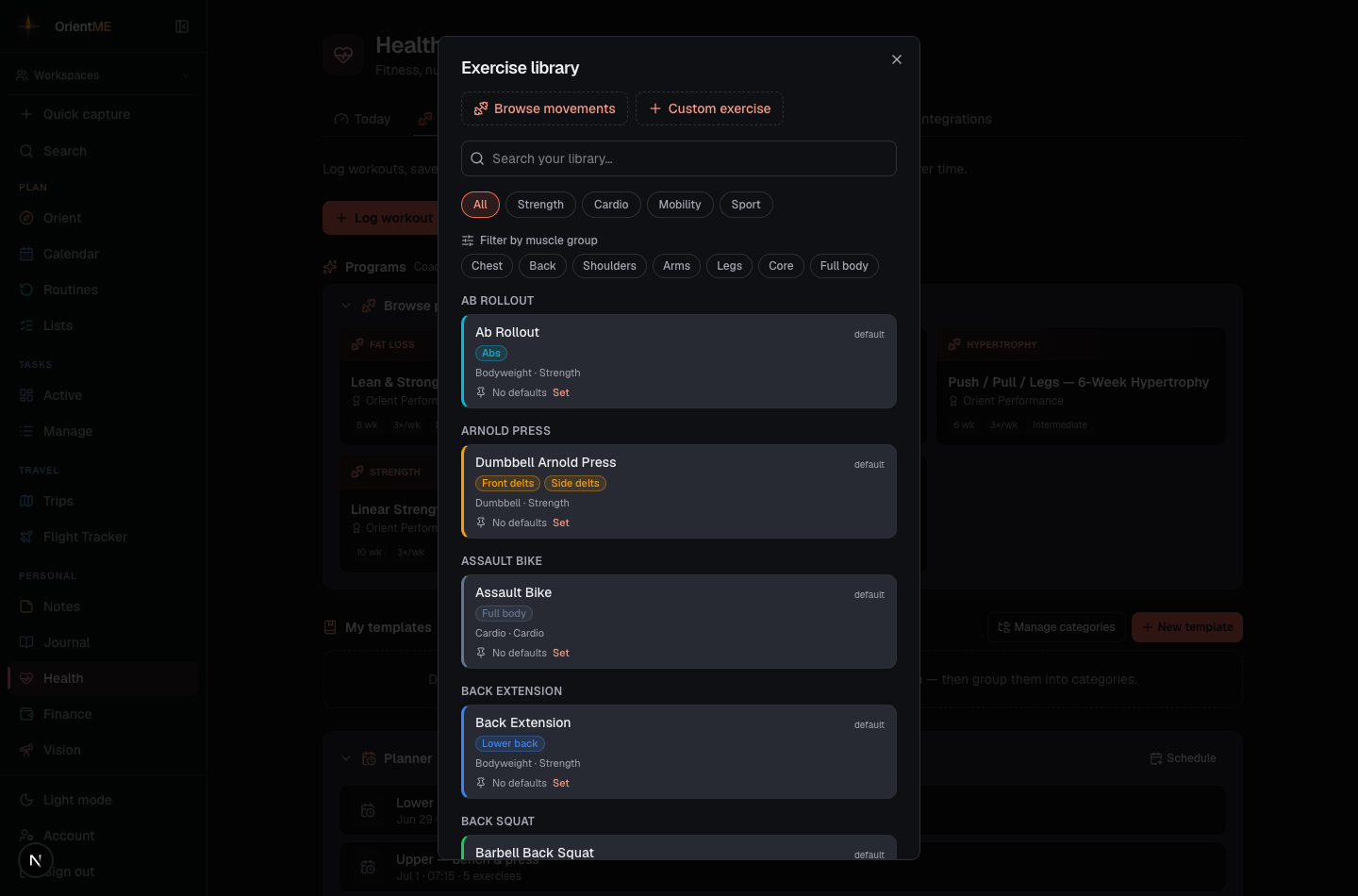
Exercise defaults. Every exercise can carry a default starting shape — sets × reps at a weight. You manage them in the Exercise library: each exercise card has a defaults row — click Set to add defaults, Edit to change them, or Clear defaults to remove them — and it shows when they were last updated. When you add an exercise to a workout it starts pre-filled: what you did last time wins when it exists, then your saved defaults, then a blank set — so defaults matter most for a movement you haven't logged yet. When the defaults are what pre-filled an exercise, its card in the editor shows the saved Default line.
Tempo. Every exercise can carry a lifting tempo — four numbers like 3-1-1-0 for
lowering, bottom pause, lifting, top pause, in seconds (an X means explosive). Set it from the
small Tempo… control on the exercise card during a live session, or from the clock button on
an exercise in the workout editor — pick a preset (Controlled, Paused bench, Slow eccentric, …)
or type your own. It travels with templates, and programs that prescribe a tempo show it on
their day previews too.
Movement families and variants. Instead of a long flat list, exercises are grouped into movement families — one Bench Press card, one Chest Fly, one Row, and so on. When you add an exercise, a family shows its common variants as one-tap chips — or tap More to open the composer and dial in a specific combination across every dimension (equipment like barbell, dumbbell, cable, machine or Smith machine; angle like incline or decline; grip; seated/standing; single-arm). The name builds as you choose — "Incline Dumbbell Bench Press" — and Add commits it. Each variant keeps its own records and history, so your incline-dumbbell numbers never get mixed up with your flat-barbell ones. Pick any combination you like; a simple exercise with no variants is added in one tap. Cardio machines work the same way: one Treadmill card with Run, Walk, Incline Walk, and Sprints chips, and one Outdoor card with Run, Walk, Ruck, and Sprints — the chips you actually use rise to the front. Browse and add variants any time from the Exercise library, or create a fully custom exercise.
Changing a variant after the fact. Picked Bench Press and then realised you're doing it close-grip? Under the exercise's name is a small chip showing which variant it is — "Barbell", "Incline Dumbbell", "Run". Tap it and the same composer opens, already set to what you're currently doing, so you change the one thing that's different and tap Change. It's there both when you're editing a workout and on the current exercise mid-session. This is a refinement, not a Swap: the movement is the same, so your sets, tempo, notes and superset pairing all stay put and nothing gets marked as a substitution. Sets you've already logged move across with it, and any numbers you hadn't touched yet re-fill from the new variant's own history — so a weight left over from the old variant can never be logged as a record you didn't set.
Standard templates are curated workout splits that ship with the app, shown as one row of cards — each carries a small chip with the split it belongs to (Push Pull Legs or All Muscle Groups 2x Weekly). They're read-only, so tap the ℹ️ info icon to see exactly which exercises, sets, and reps a template includes. Tap Start to begin a live session from one right away — a copy is dropped into My templates automatically, so you can tweak it for next time. Prefer to adjust first? The Duplicate button adds the copy without starting a session.
My templates are yours to change. Create one with New template (name it, add exercises, and pick a category from the dropdown), turn a workout you've already done into one, or duplicate a standard and tweak it. Templates are grouped by category into collapsible sections, and each has the same info icon. Hit Start on a template to begin a session already filled in — adjust the weights and log it.
Turning a session you did into a template. When a workout goes well, keep it. The Save as template action is on the workout's own row under Recent workouts, on the summary you get right after finishing a session, on any session in History & records, and inside the workout editor — so you can do it the moment the thought occurs, without opening anything. You'll be asked for a name and a category before it saves, so templates don't pile up unnamed in Uncategorized.
Your exercises, sets, reps and weights are copied — that's the whole point, a template is "what I did last time". The date, how long it took, how you felt, your notes and your RPE are not: those describe that day, not the plan. Saving a template never touches the original workout or any records it set.
Categories keep your templates organized. Use Manage categories (next to New template) to add, rename, or remove them — they then appear in the category dropdown when you create or edit a template. A duplicated standard keeps its split name as its category, so it shows up grouped under that name — your managed category list itself only ever contains categories you created. Deleting a category never deletes its templates; they simply move to Uncategorized.
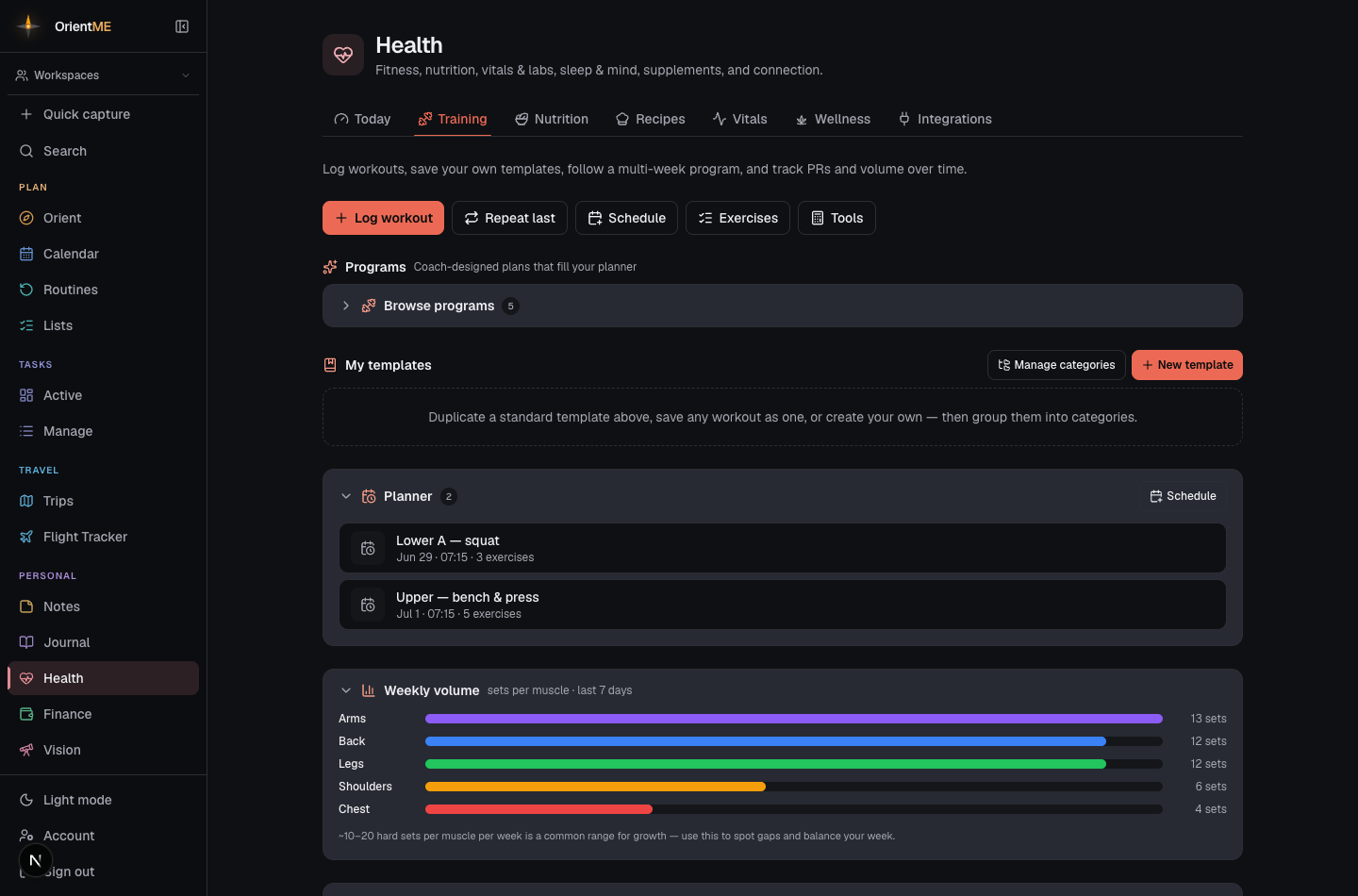
The Planner lets you schedule sessions ahead. Tap Schedule (or the calendar icon on a template), pick a date and time, and it's added to your planner. When the day comes, tap the ✓ check on the planner row to log it exactly as planned in one tap — any weights the plan left blank are filled in from the last time you did that exercise, so the log reflects what you actually lift. Or open the row, adjust your numbers, and hit Complete session. Either way it moves into your workout history and you get the session summary.
Plans aren't set in stone: hover a planner row and tap the ✎ pencil to edit or reschedule it — change the date, time, or exercises and save it as a plan again. A session whose day has passed shows an overdue tag so it's easy to spot. Sessions that belong to a program carry a small Wk 2 · program name chip, and a long list shows just the next seven rows — tap Show all to see the rest.
Cardio
Cardio is logged as a bout, not as sets of reps — one card for the whole effort, with the controls the machine you're actually on has.
Pick the machine, then the activity. Cardio is organized by where you are, not by a long list of lookalike entries: the Treadmill card carries everything you do on it — Run, Walk, Incline Walk, Sprints — as one-tap chips, and Outdoor does the same for Run, Walk, Ruck, and Sprints. The activities you log most float to the front of the row. Each activity keeps its own history, records, and last-used settings, so your walking pace never competes with your running pace. (If you've been logging for a while, your existing entries were renamed to match — "Incline Walk" is now Treadmill Incline Walk, "Running" is Outdoor Run — with all history and records intact.)
The three numbers work out the third. Distance, time, and speed (or pace) are linked, and you only ever know two of them. Type any two and OrientME fills in the last one, marking it CALCULATED: set the treadmill to 2.4 mph, walk for 10:00, and the 0.4 mi appears on its own. Prefer to think in pace? A run shows Pace (/mi) instead — enter 20:00 and 10:00 and you get half a mile. Nothing is locked: type over the calculated field and it becomes yours, and whichever number you touched least recently starts being calculated instead. A distance a plan prescribed for you is never overwritten.
Your machine's own controls. A treadmill asks for Incline (%) — with ± buttons, up front,
because on an incline walk the incline is the workout. A rowing or ski erg asks for Damper and
paces you in /500m. A bike asks for Resistance, an elliptical for both, a stair climber for
Level — and doesn't ask for a distance at all, because it can't measure one. Times take
mm:ss (7:30), and a plain number still means minutes.
Intervals when you want them. One bout is the default — the button just says Done — Bout, and there's no warm-up or drop set to worry about (those are lifting ideas). Doing intervals? + Add interval adds another, and the card starts counting them: Interval 2 / 4.
Your cardio history reads the same way — a logged bout shows as 0.5mi in 10:00 @ 12.5%, so a hard incline walk never looks like a flat stroll. Cardio also keeps its own records: longest distance and best pace.
Lifting tools
Tap Tools on the Training screen for two quick calculators and, on the app, a standalone rest timer:
- Estimate 1RM — enter a weight and the reps you did (up to 20) and it shows your estimated one-rep max, plus a small table of what that works out to at other rep counts. It's the same estimate your Records use.
- Plate calculator — enter a target weight and bar weight and it shows the plates to load per side. If the target can't be hit exactly with standard plates, it also shows the closest loadable weight.
- Rest timer (mobile app) — the same rest timer the live session uses, on its own, for days you're training off a plan: tap the big card to start (tap again to restart between sets), nudge it ±30s, and it rings your chime at zero. It remembers your last rest length, keeps the screen awake while it runs, and rings over your music without pausing it — even with the mute switch on.
On the app, all rest timers — in the Tools sheet, a live session, or the workout editor — also ring as a notification if your phone is locked when time's up, so you can put the phone face-down between sets. The first time you start one, the app asks for notification permission.
Workout programs
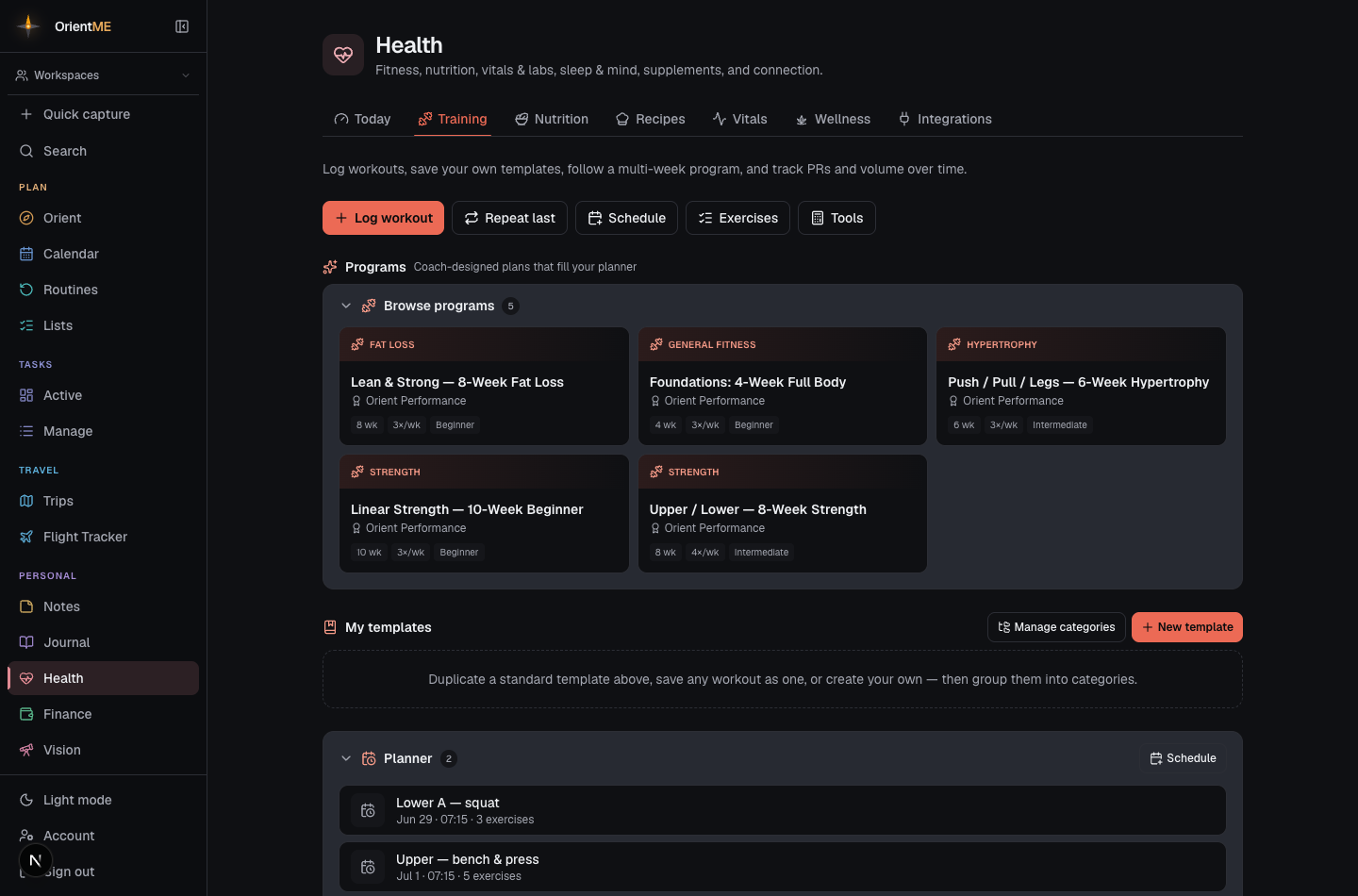
Programs are multi-week training plans you can add to your planner in one setup — designed by coaches and athletes, or built by you. Each runs up to twelve weeks. You'll find them under Training → Programs, split into My programs (yours) and Browse programs (the coach-designed library).
Browsing. The Browse section lists what's available, each with the designer's name and the length (how many weeks, and days per week). Tap a program to see the designer, the goals it's built for and the equipment it needs, and a week-by-week breakdown of every session inside it.
Meet the designer. In a program's details, tap the designer's card to open their profile — a short bio, their credentials, links to follow them, and a list of the other programs they've built. Tap any of those to jump straight to it. On mobile, the coach's name appears under the title on your Active program card; tap it to open the same profile.
Setting one up. Tap Set up program to open a short walkthrough. You choose which day of the week — and an optional time — you'll do each session, pick a start date, and, if you like, swap out any exercise you can't do. Confirm, and your planner fills with every session of the program on the days you chose.
Swapping exercises. If you don't have a particular machine, swap that movement for one you can do and it's substituted across the whole program. You can review and change your substitutions any time from the active-program card, and revert to the original at any point — your already-logged sessions are never changed. A "swapped from …" note with a revert link appears on any exercise you've swapped. Changing substitutions mid-program is on the web for now — on the app you pick your swaps during setup.
Following along. An Active program card shows how far you are (for example, "Week 3 of 8"), your next session, and your overall progress. Tap the Next session row on the card to start it as a live workout right there, complete a planned session from the planner with one tap, or open it and log it just like any other workout.
Build your own program — and share it
Build one from your templates. Under My programs, tap Build from my templates. Name it, choose how many weeks, then tap the sessions you've already saved as templates in the order you train them — they number 1, 2, 3 as you go. That's your week, repeated for as long as you set. Set it up exactly like any other program: you pick the weekdays and start date, and your planner fills.
Share it with a training partner. Open a program you built and tap Create share link. That gives you a link to send however you like. Whoever opens it sees a read-only preview of the plan — the sessions, the exercises, the sets and reps — and can take their own copy with one tap.
Three things worth knowing about that link:
- Your weights don't travel. They get the structure — sets, reps, RPE, tempo, supersets — and fill in their own loads from their own history. Someone else's numbers wouldn't help them anyway.
- They train on their own days. Importing asks them for a start date and their weekdays, so your Monday/Wednesday/Friday can be their Tuesday/Thursday/Saturday.
- It's a copy, not a live link. Once they've imported it, it's theirs. If you later edit, re-share, or delete your program, their copy is untouched — and nothing about your own logged training, weights or records is ever visible to them.
Links expire after 14 days. The share row shows how long is left. Tap New link to share again — that creates a fresh link and the old one stops working, so a URL you sent months ago can't be passed around later. Stop sharing kills it immediately. Either way, anyone who already imported the program keeps their copy. An expired link doesn't look broken to whoever opens it: they see "this link has expired — ask for a new one".
Importing one someone sent you. Open the link and choose Add to my programs (then set your own days), or Just save the sessions as templates if you'd rather schedule them yourself. On the app you can also go to Training → My programs → Import from a link and paste it in.
Extending or ending. When you reach the end — or simply want to keep going — tap Extend to add another full cycle of the program to your planner. Tap End to clear the remaining planned sessions; your logged history stays exactly as it was.